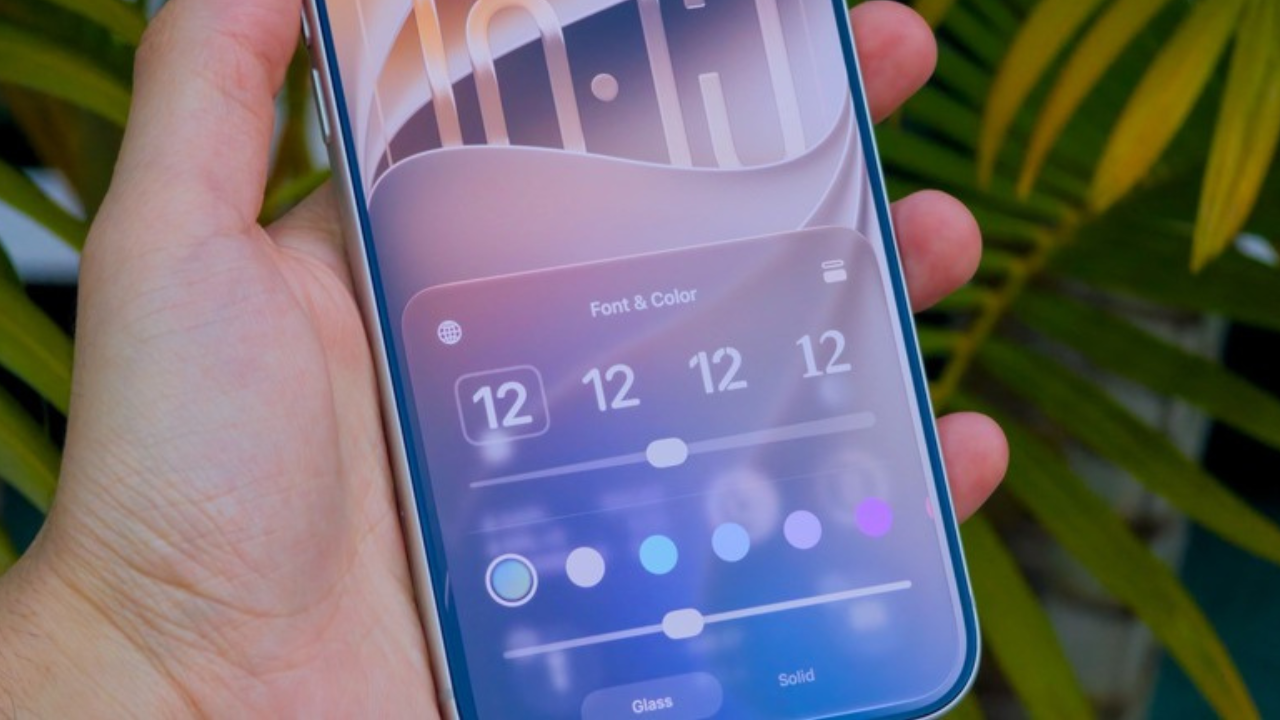
Apple has made Liquid Glass more customizable in iOS 27. Instead of being limited to one fixed appearance, iPhone users can now adjust the look with a new slider that moves from an ultra-clear style to a fully tinted appearance.
This gives you more control over how transparent or solid parts of the iPhone interface look. Here is how to change it and which setting may work best for you.
What Is Liquid Glass in iOS 27?
Liquid Glass is Apple’s design style for parts of the iPhone interface. It uses transparency, light, blur and changing colors to create a glass-like appearance around controls and other interface elements.
In iOS 27, Apple has made further changes to Liquid Glass to improve readability. The company says the updated design uses more consistent refraction and better contrast. Apple has also added a new slider so users can choose how clear or tinted the effect looks.
This is useful because people have different preferences. Some users may like the bright, transparent look, while others may find a more solid appearance easier to read.

How to Customize Liquid Glass on Your iPhone
Changing the Liquid Glass appearance does not require a separate app or complicated setup. The control is built directly into the iPhone’s display settings.
To adjust it:
- Open the Settings app.
- Tap Display & Brightness.
- Tap Liquid Glass.
- Move the slider toward Clear or Tinted to choose the appearance you prefer.
Apple’s iOS 27 documentation describes the new control as a slider that lets you customize Liquid Glass from ultra-clear to fully tinted.
What the Liquid Glass Slider Changes
The slider controls how much transparency you see in supported parts of the interface.
Moving toward the clear end keeps more of the glass-like effect. Background content can remain more visible through interface elements, giving the iPhone a lighter and more transparent appearance.

Moving toward the tinted end makes the interface more solid. This increases contrast and reduces the amount of background content showing through the glass.
| Setting | Appearance | Best for |
|---|---|---|
| More Clear | More transparent and glass-like | People who prefer the full Liquid Glass look |
| Middle | Balance between transparency and contrast | People who want a mix of both styles |
| More Tinted | More solid with higher contrast | People who want clearer interface elements |
The exact appearance can also change depending on what is displayed behind an interface element. Liquid Glass is designed to adapt to the content underneath it rather than behaving like a simple fixed color.
Which Liquid Glass Setting Should You Use?
There is no single setting that is best for everyone. The right choice depends mainly on whether you prefer appearance or easier reading.
If you like Apple’s new design and want the interface to look more transparent, move the slider toward the clear side.
If you sometimes struggle to read buttons, menus or other interface elements because of the background behind them, try moving the slider toward the tinted side. The more tinted appearance provides greater opacity and contrast.
For many users, a middle position can be a useful starting point because it keeps some of the Liquid Glass style without making the interface as transparent.
You Can Also Use Accessibility Settings
The Liquid Glass slider is not the only way to change how transparent the iPhone interface looks.
Apple also provides accessibility settings for people who want stronger contrast or less transparency. These controls can make some interface elements easier to see.
One important detail is that Apple says Reduce Transparency and Increase Contrast can affect the Liquid Glass appearance controls. If either of those settings is enabled, you need to turn them off before changing the Liquid Glass appearance.
You can find these options by going to Settings > Accessibility > Display & Text Size.

What If You Want Less Motion?
Liquid Glass is not only about transparency. Some of its visual effects also include movement and animation.
If you prefer fewer moving effects, iPhone has a separate Reduce Motion setting under Settings > Accessibility > Motion. Apple says turning on Reduce Motion reduces some motion effects, including the fluid morphing effects associated with Liquid Glass.
This setting is different from the Liquid Glass appearance slider. It changes motion rather than simply making the glass more or less transparent.
iOS 27 Gives Users More Control
The biggest change is that Apple is no longer treating Liquid Glass as a single fixed visual style. iOS 27 gives users a slider that can adjust the design from ultra-clear to fully tinted.
That makes the feature more flexible for different users and different viewing preferences. Someone who enjoys Apple’s glass-like design can keep it clear, while someone who wants a stronger and easier-to-read interface can increase the tint.

The changes also build on Apple’s earlier Liquid Glass controls, which introduced a Clear and Tinted choice for the design.
The Bottom Line
Customizing Liquid Glass in iOS 27 takes only a few taps. Open Settings, go to Display & Brightness, select Liquid Glass, and adjust the slider until the interface looks right to you.
Use a clearer setting if you like transparency and Apple’s full glass-style design. Move toward a tinted setting if you want more contrast and a less transparent interface. If you also want to reduce motion or make transparent areas easier to see, Apple’s accessibility settings provide additional controls.
The main advantage of iOS 27 is simple: you no longer have to accept just one Liquid Glass appearance. You can adjust it to match the way you want your iPhone to look and feel.