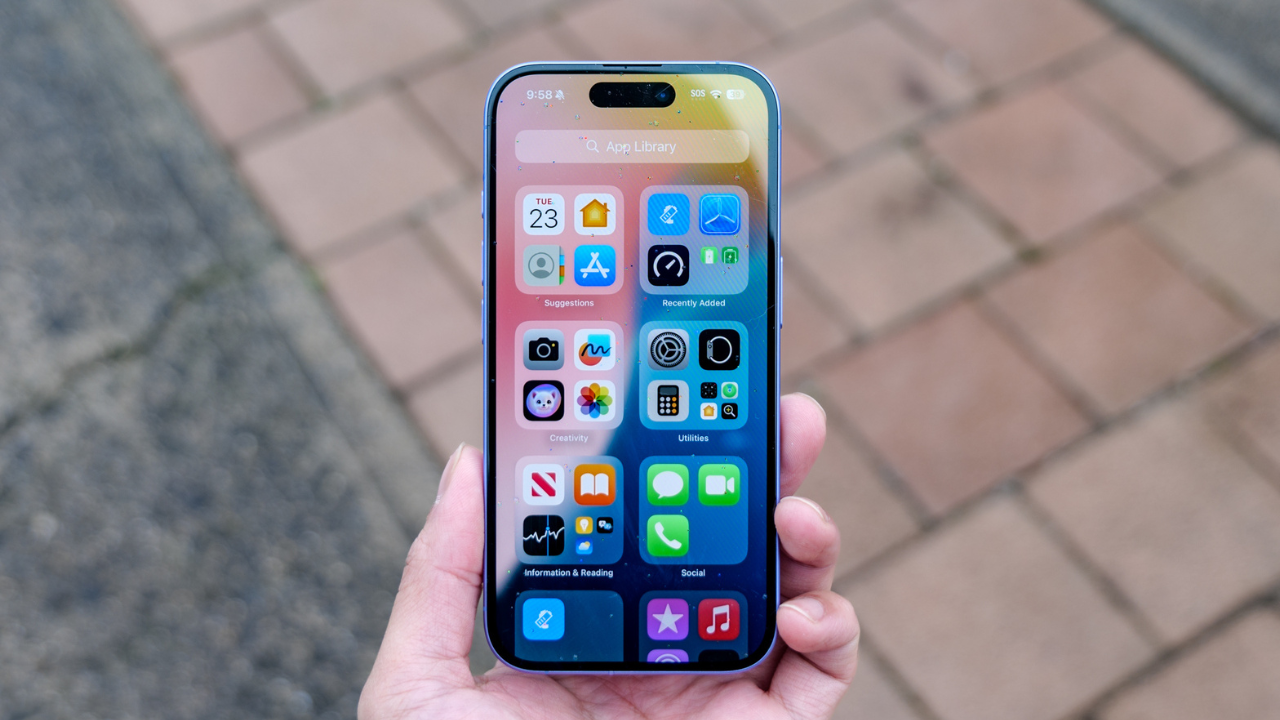
Apple’s Liquid Glass design gives the iPhone interface a more transparent and layered look, but not everyone likes how it appears on screen. The good news is that Apple provides settings that let you change how strong the effect looks.
If you want more contrast or a less transparent appearance, you can adjust Liquid Glass directly from Settings. You can also use accessibility settings to make transparent parts of the interface more solid and easier to see.
What Is the Liquid Glass Effect?
Liquid Glass is Apple’s newer visual design for iPhone software. It uses transparency, blur and layered elements to give controls and other parts of the interface a glass-like appearance.
The design is meant to make the interface feel more connected to the content behind it. However, the transparent look can make some buttons, menus and notifications harder to see for some people.

Apple therefore gives users more than one way to change the appearance. The main setting lets you choose between Clear and Tinted.
How to Change Liquid Glass in a Few Steps
The easiest way to change the appearance is through the Display & Brightness section of the Settings app.
Follow these steps:
- Open the Settings app on your iPhone.
- Tap Display & Brightness.
- Tap Liquid Glass.
- Choose Clear for a more transparent look or Tinted for more contrast and higher opacity.
The Clear option keeps the stronger transparent style. Tinted makes the material less transparent, so content and controls can appear easier to distinguish.

Clear vs Tinted: Which One Should You Choose?
The two choices are mainly about how transparent the Liquid Glass interface looks.
| Setting | What it does | Best for |
|---|---|---|
| Clear | Keeps a more transparent Liquid Glass appearance | Users who like the original glass-like design |
| Tinted | Adds more contrast and makes the material more opaque | Users who want a clearer and easier-to-read interface |
There is no need to restart the iPhone after changing this setting. The appearance changes through the system settings.
How to Reduce Transparency Even More
If Tinted still looks too transparent, Apple also provides an accessibility setting called Reduce Transparency.
To turn it on, open Settings, go to Accessibility, tap Display & Text Size, and turn on Reduce Transparency. Apple says this makes transparent or blurred backgrounds more solid, which can make parts of the screen easier to see.
There is one important detail to remember. Apple says that if Reduce Transparency or Increase Contrast is turned on, you need to turn those settings off before you can change the Liquid Glass appearance between Clear and Tinted.
So, if you want to test both Liquid Glass choices, first make sure those accessibility settings are off.
Which Settings Give You the Simplest Look?
For most people, the choice comes down to how much transparency they want.
If you enjoy Apple’s new visual style, Clear keeps more of the original Liquid Glass look. If you find the interface too transparent, Tinted is the simpler first change to try.

If you still have trouble seeing transparent elements, Reduce Transparency goes further by making those backgrounds more solid. Apple also offers other display options under Accessibility, including settings that can change contrast and colors.
Liquid Glass Cannot Be Adjusted With Just One Slider
It is worth knowing that Apple does not provide a single slider that lets you choose exactly how much Liquid Glass appears throughout the entire iPhone interface.
Instead, Apple separates the controls. The Liquid Glass menu provides the Clear and Tinted choices, while accessibility settings provide additional ways to reduce transparency and improve visibility.
This means you can choose the setting that best matches how you use your iPhone instead of being stuck with only the default appearance.

The Bottom Line
Changing the Liquid Glass appearance on an iPhone takes only a few taps. Go to Settings > Display & Brightness > Liquid Glass, then choose Clear or Tinted.
Clear keeps the more transparent appearance, while Tinted increases contrast and opacity. If you want to make transparent areas even more solid, Settings > Accessibility > Display & Text Size > Reduce Transparency provides another option.
If the Liquid Glass design feels too busy or difficult to read, changing these settings is the simplest way to make the iPhone interface more comfortable without changing the rest of the phone’s features.