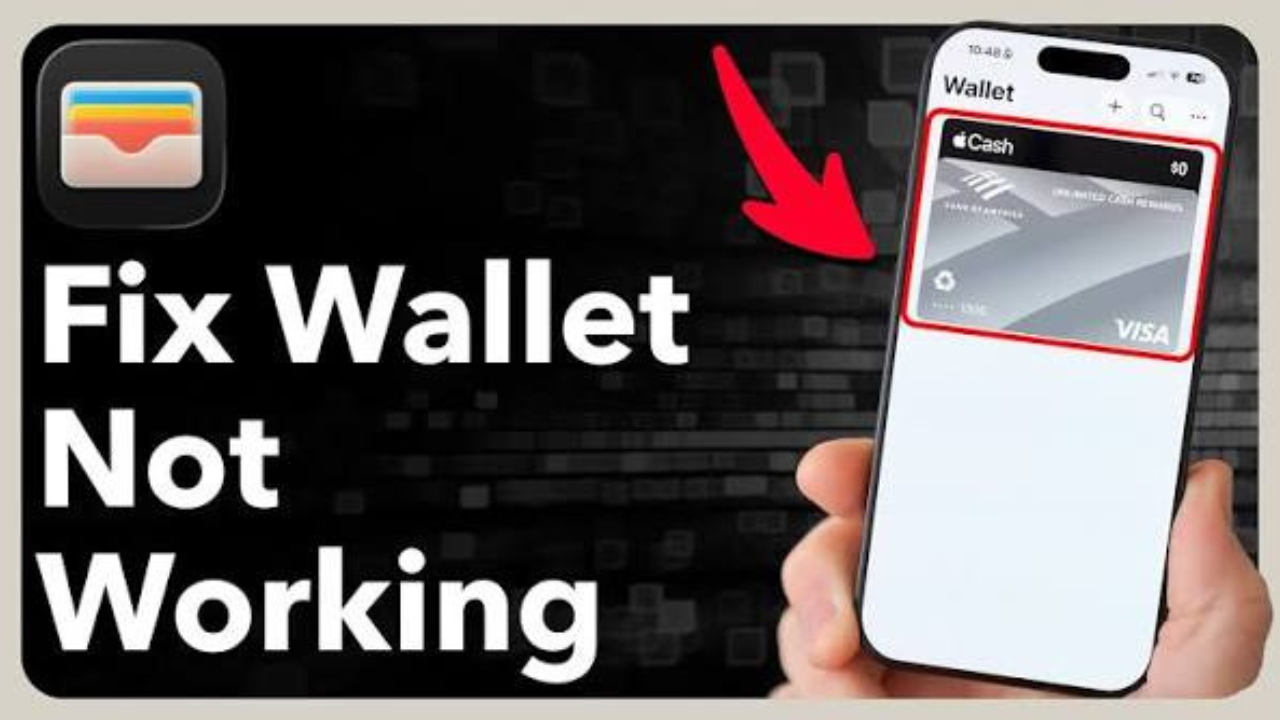
Apple Wallet is designed to keep payment cards, tickets, passes, and other digital items in one place. But when a card will not add, a payment is declined, or a ticket does not appear, the problem can be frustrating.
Most Wallet problems have a simple cause. The card may not be supported, the iPhone may need an update, the bank may need to approve the card, or the feature may not be available in your country. Here is how to check the most common problems and fix them.
Card won’t add to Apple Wallet
One of the most common problems is seeing an error when trying to add a debit or credit card.
Apple says Apple Pay requires a compatible device, the latest supported software, a passcode or biometric security such as Face ID or Touch ID, a signed-in Apple Account, and a card from a participating card issuer. Apple Pay is also not available in every country or region.
Before contacting your bank, check these basics:
- Update your iPhone or other Apple device to the latest available software.
- Make sure Face ID, Touch ID, or a passcode is turned on.
- Check that your Apple Account is signed in and has two-factor authentication enabled.
- Confirm that your bank and particular card support Apple Pay.
If you see messages such as “Could Not Add Card,” “Invalid Card,” or “Card Device Limit,” Apple recommends contacting your bank or card issuer. Apple itself does not approve or decline payment cards for Apple Pay.
Apple Pay is not working in your country
Sometimes nothing is wrong with the iPhone or the card. The problem may simply be that Apple Pay is not supported in your location.

Apple Pay is available in many countries, but support varies by market. Even in a country where Apple Pay is available, not every bank or card is necessarily supported.
This is particularly important when traveling. A card that works with Apple Pay at home may not necessarily be supported in another market, and local payment rules can differ.
If you are unsure, check Apple’s current country and region availability information and then check whether your specific card issuer participates.
Apple Pay payment is declined
A card appearing correctly in Wallet does not guarantee that every transaction will be approved.
When you use Apple Pay, the payment is still sent to the card issuer for approval. A bank can decline a transaction for reasons that have nothing to do with the Wallet app.
If a payment fails, first try the transaction again if appropriate. If it continues to be declined, contact the bank or card issuer.
Apple says the card issuer is the right place to ask why a payment was declined. Simply removing and adding the card again may not solve a bank-side problem.

A ticket or pass is missing
Apple Wallet is not only for payment cards. You can also add eligible tickets, boarding passes, coupons, rewards cards, and other passes.
Normally, you add one by opening the email, app, notification, or other message containing the pass and selecting “Add to Apple Wallet.”
If you cannot find that option, the company that issued the ticket or pass may not support Apple Wallet.
In that situation, the issue is not necessarily with your iPhone. The ticket provider has to create and support the Wallet pass before it can be added.
Your Wallet cards or details look outdated
Another issue can occur when account information or transaction details do not update as expected.
For supported connected cards, Wallet can show account balances and transaction history. Apple notes that some pending transactions may not appear, and information can sometimes be delayed because of internet connectivity or other factors.
If connected account information is not updating, check your internet connection and make sure the relevant banking app is up to date. Apple also says that connected-card features require an eligible card issuer and supported software.

This is different from an Apple Pay payment being declined. A missing transaction in Wallet does not automatically mean that the payment failed.
Your default card is wrong
If Wallet keeps selecting a different payment card from the one you want to use, you can change the default card.
On an iPhone, open Wallet, touch and hold the card you want, and drag it in front of your other cards. That makes it the default payment card on that device.
This can be useful if you have several cards stored in Wallet and regularly use one particular card for contactless payments.
Quick fixes for common Apple Wallet problems
| Problem | What to check | Best next step |
|---|---|---|
| Card will not add | Device, software, Apple Account and card support | Update the device and contact the card issuer if the error remains |
| “Invalid Card” message | Card eligibility | Contact your bank |
| Payment declined | Bank or card issuer approval | Contact the card issuer |
| Wallet option missing for a ticket | Ticket provider support | Ask the issuer whether it supports Apple Wallet |
| Transaction information delayed | Internet and bank connection | Check connectivity and banking app |
| Wrong card selected | Default card setting | Move your preferred card to the front |
| Apple Pay unavailable | Country or region support | Check Apple’s current availability list |
Remove and add a card again only when necessary
Removing a card can sometimes be useful when you are troubleshooting, but it should not be the first response to every Wallet problem.
If a bank has declined the card or does not support Apple Pay, adding the same card again will not change that decision.
If you do need to remove a card, Apple provides a direct option inside Wallet. On an iPhone, open the card, select the card details, and choose “Remove Card.”
You may then need to go through the card verification process again when adding it back.
What to do before contacting Apple or your bank
A few simple checks can save time.
First, make sure the iPhone is running the latest available version of iOS. Next, check that you have a passcode or Face ID/Touch ID enabled and that you are signed in to your Apple Account.
Then check whether your card issuer supports Apple Pay. Apple specifically recommends contacting the bank when a card cannot be added or when a payment card is declined.
If the problem involves a ticket or pass rather than a payment card, contact the company that issued it. That company controls whether its ticket or pass can be added to Wallet.
When a Wallet problem is not really a Wallet problem
It is easy to assume that every failed payment is caused by the Wallet app. In reality, several different systems are involved.
Your iPhone needs compatible hardware and software. Apple Pay needs to be available in your market. Your bank needs to support the service and approve the card. The merchant also needs to accept Apple Pay and the payment network used by your card.

That is why checking each part separately is often more useful than repeatedly restarting the Wallet app.
Final thoughts
Apple Wallet problems can look complicated, but most can be narrowed down quickly.
If you cannot add a card, check device compatibility, software, security settings, country support, and card-issuer support. If a payment is declined, your bank is usually the right place to ask for an explanation. If a ticket or pass cannot be added, check with the company that issued it.
The key is to identify whether the problem comes from the iPhone, Apple Pay, the card issuer, the merchant, or the ticket provider. Once you know which part is causing the problem, the fix is usually much easier.