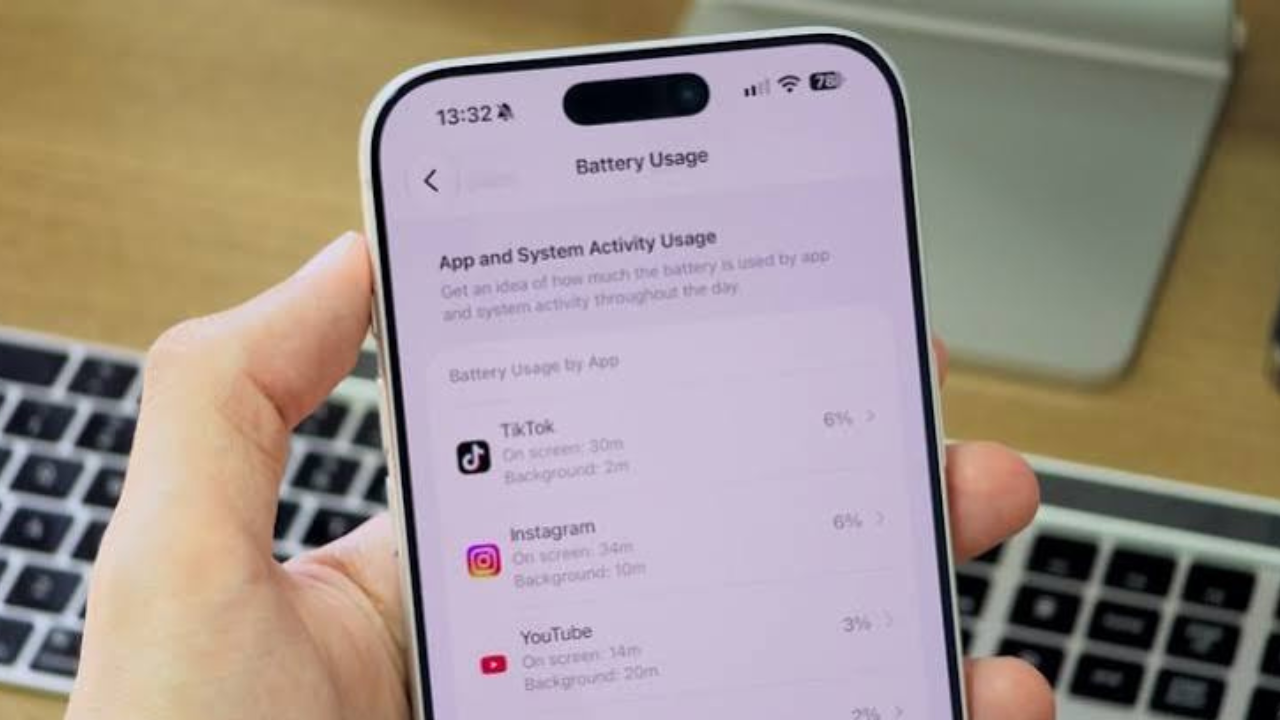
If your iPhone battery seems to be disappearing faster than usual, an app could be using more power than you realize. The good news is that you do not need a separate battery-monitoring app to find out what is happening.
Apple provides a built-in battery report that shows which apps are using the most battery, how long they have been active, and whether they are doing work in the background.
Start with the iPhone Battery screen
The quickest way to check battery use is through the Settings app. Apple provides daily information as well as a longer view covering the previous eight days.
To check it, follow these steps:
- Open Settings on your iPhone.
- Tap Battery.
- Look at the Daily Usage section.
- Tap View All Battery Usage to see battery use for the last eight days.
The Daily Usage section compares your current battery use with your normal use from recent days. It can also highlight the apps or system activities that are using the most battery.
How to tell which app is using the most battery
After opening Battery settings, scroll down to the App and System Activity section. You will see apps and system activities listed according to their battery use.
The percentage shown tells you how much of the battery usage being reported for that period is linked to that app or activity. You can tap an individual app to see more details about its activity.
Apple can show several types of activity, including time the app was visible on the screen and activity that happened while the app was running in the background.

This is important because the app at the top of the list is not automatically a badly designed or faulty app. If you spend several hours watching videos, playing games or using social media, that app may naturally appear near the top because you used it heavily.
Pay attention to background activity
One of the most useful clues is the Background Activity label.
An app can continue doing certain tasks when it is not visible. Apple gives examples such as getting directions, playing music, syncing photos and checking mail.
If an app shows a large amount of background activity even though you rarely use it, that is worth investigating. It may help explain why your battery is falling faster than expected.
A simple way to read the information is:
| What you see | What it means |
|---|---|
| On Screen | The app was open and visible on your iPhone |
| Background Activity | The app was doing work while not being shown on screen |
| Notifications | Notifications from the app woke the iPhone |
| Low Signal | Poor cellular coverage contributed to higher battery use |
| Connected to Charger | The activity happened while the iPhone was charging |
These labels can help you understand whether an app is draining the battery because you actively use it or because it is doing work in the background.
Do not blame an app just because it is at the top
Battery percentages need some context.
For example, if you use a video app for several hours, it may naturally consume more battery than an app you open for only a few minutes. A high percentage therefore does not automatically mean the app has a battery problem.

Instead, look for unusual behavior.
If an app you barely use shows substantial background activity, or if its battery use suddenly becomes much higher than normal, it deserves closer attention.
The Daily Usage view is particularly helpful here because you can compare today’s activity with previous days. Apple says iPhone can show whether your battery use is higher, lower or similar to your usual pattern.
Check Apple’s battery suggestions
Your iPhone can also provide suggestions when it detects settings that may be affecting battery life.
These suggestions appear in Settings under Battery, above the Daily Usage section when they are available.
Apple says suggestions can include turning on Auto-Brightness, enabling Auto-Lock or reducing unusually high screen brightness.
This matters because an app may not be the real reason your battery is draining quickly. A bright screen, weak cellular signal or other system activity can also increase power use.
Weak cellular signal can drain the battery too
Sometimes the problem is not an app at all.

When your iPhone is in an area with weak cellular coverage, it may use more energy while searching for or maintaining a connection. Apple specifically lists low or missing cellular coverage as a factor that can affect battery life.
If you notice faster battery drain while traveling or in a place with poor signal, check the Battery screen before deleting apps or changing lots of settings.
Using Wi-Fi when it is available can also help when you are using internet-based apps. Apple recommends connecting to Wi-Fi when possible because it generally uses less battery than cellular .
What to do when one app is using too much battery
If the Battery screen shows an app using an unusually large amount of power, start by checking how you actually use that app.
If most of its battery use is listed as On Screen, the simplest explanation may be that you spend a lot of time using it. You may not need to change anything.
If Background Activity is unusually high, look at the app’s settings and the related iPhone permissions. Reducing unnecessary background work or notifications can help in some cases.
Apple also notes that notifications can wake the iPhone and use battery. Reducing notifications from apps that do not need to alert you constantly can therefore reduce unnecessary activity.
Check whether the battery itself is getting old
If several apps seem to use more battery than expected, the problem may not be a single app. The iPhone’s battery itself may have lost capacity over time.

You can check this from Settings.
| iPhone model | Where to check battery health |
|---|---|
| iPhone 15 and later | Settings > Battery > Battery Health |
| iPhone 14 and earlier | Settings > Battery > Battery Health & Charging |
On iPhone 15 models and later, Apple also provides information such as battery cycle count, manufacture date and first-use date. If Battery Health shows a Service message, Apple recommends considering battery replacement.
Use Low Power Mode when you need extra battery life
If you need your iPhone to last longer during the day, Low Power Mode can reduce power use.
You can find it under Settings > Battery > Power Mode. Apple says Low Power Mode reduces or turns off certain activities and features, including Mail fetch, Hey Siri, Background App Refresh and some visual effects.
This is useful when you are away from a charger and need to make the remaining battery last longer.
Newer iPhones can also use Adaptive Power
Some newer iPhone models support Adaptive Power. This feature can automatically make certain adjustments when your iPhone detects that you are using more power than usual.
Apple says Adaptive Power can make performance adjustments, slightly lower screen brightness, limit background activity and turn on Low Power Mode when the battery reaches 20 percent.
It is available on iPhone 17 models, iPhone Air, iPhone 16 models, iPhone 15 Pro and iPhone 15 Pro Max, with availability depending on the model and software version.

A battery drain does not always mean something is wrong
It is normal for some apps to use more battery than others. Games, video apps, navigation and other apps that keep the screen, processor, camera or location services busy can consume a lot of power during active use.
The important thing is to look for a pattern rather than judging an app from one day’s usage.
If battery use suddenly becomes much higher, check the Daily Usage section, look at the app’s activity details and see whether Apple has provided a battery suggestion or Insight. After a software update, Apple also recommends waiting a few days before judging battery life because some update-related tasks may continue in the background.
Final takeaway
You can find out which apps are draining your iPhone battery without installing anything extra. Go to Settings, open Battery and review the App and System Activity section. Tap an app to see whether its battery use mainly comes from time on screen, background activity or other factors.
If one app suddenly stands out, investigate its activity rather than immediately deleting it. Also check your screen brightness, cellular signal, notifications and battery health because these can have a major effect on how long your iPhone lasts.
For the most accurate information about your particular iPhone, use Apple’s built-in Battery screen. It gives you a clear view of recent battery use and can point you toward the settings that may help your battery last longer.